
09.Insurance
Overview
The user (pricing manager of Kazunion tour operator) receives different insurance terms from insurance suppliers and registers them as programs. Then insurance packages are created based on programs and are available for agents to sell alongside with full packages.
The user (a selling agent of Kazunion) may sell insurance as an additional service when booking includes only tours.
Insurance module allows to choose between different Insurances/additional supplements and have authority to sell specific insurance to selected tourists individually.
This functionality is available only for Nugioscore Kazunion only for the moment.
Primary Users
Reservation department, System Administrator
Navigation Path
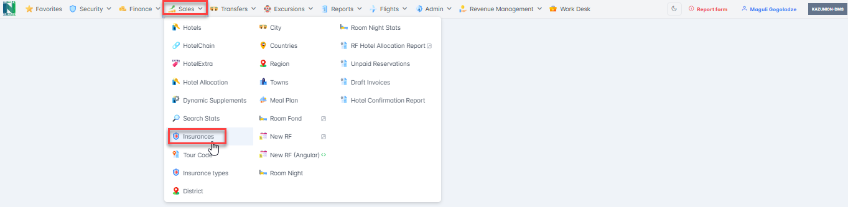
Nugioscore/Sales/Insurance
Business Description
Programs
Features and Functionalities
The received different insurance terms from insurance suppliers are registered as programs in the system. Then insurance packages are created based on programs and are available for agents to sell alongside with full packages.
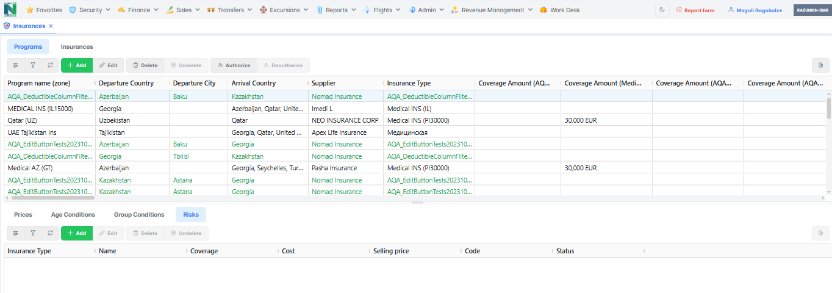
This is a space where the user is allowed to create/edit the insurance programs. The detailed information about programs is registered using button Add/Edit Program.
When added/edited, a program is saved as Draft. There are three types of status of the records, and toolbar elements for this kind of records may be different as per status :
- Draft records- color is green and can be authorized or deleted
- Approved records - color is black and can be deauthorized only
- Deleted records - color grey, can be only undeleted
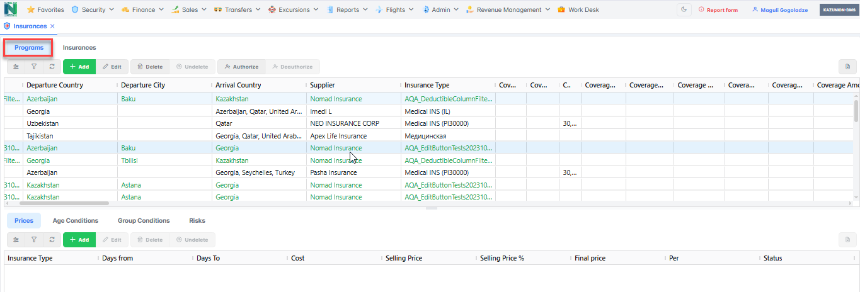
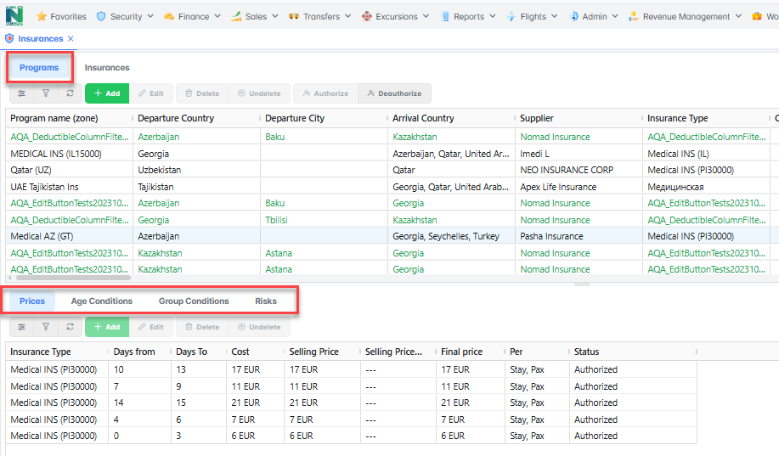
The page where Programs Tab is located is divided into two Grids. The Programs tab is in the Upper Grind.
The Grid Below, Program Details include tabs as Prices, Age Conditions, Group Conditions and Risks, shows/allows to add detailed information about particular insurance Program. Accordingly, the information in the grid below changes according to the programs selected in the upper grid.
Buttons Description
| Grid Options | A detailed description see here: Grid Options | ||||||||||||||||||||||||||
| Filter Options | A detailed description see here: Filter Options | ||||||||||||||||||||||||||
| Refresh | A detailed description see here: Refresh | ||||||||||||||||||||||||||
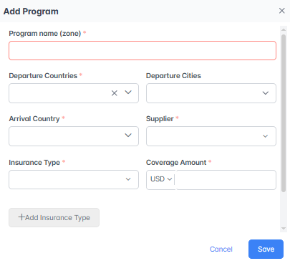
| Add/Edit | This section allows to user to register/Edit received different insurance terms from insurance suppliers and create the Programs. If any of the mandatory fields stay empty during the registration process, the notification comes out: Please Fill in the Information. If a user enters an incorrect information type, the system shows a text directly in the field: Incorrect Information. Note: The Edit button is always active/visible only when the record has a "draft" status.
| ||||||||||||||||||||||||||
| Delete/Undelete | |||||||||||||||||||||||||||
| Authorize/Deauthorize | This feature is available to some specific users only who has been granted special permission to authorize/deauthorize the created insurance program and its terms in the Nugioscore system.
After Authorization Programs/Insurance should be active/published. It is important to mention that it is impossible to Authorize/Activate Programs without prices attached. When the program is authorized in the Insurance tab and in the Published column it has the status "yes" but if you deauthorize the program, in the Insurance tab and in the Published column it gets the status "No". | ||||||||||||||||||||||||||
| Export to Excel | A detailed description see here: Export to Excel |
Grid Columns Description
| Name | Description | Database Name |
| Program name (zone) | The name of the insurance program to be used to identify in the system. | |
| Departure Country | The country which will be insurance coverage area. | |
| Departure City | The city from which tourist begins the trip. | |
| Arrival Country | The country of destination. | |
| Supplier | The insurance company name that provides the insurance service to the Company. | |
| Insurance Type | It shows whether the insurance is Medical or Non-departure. | |
| Coverage Amount | The total insurance value defined by the supplier and applicable to this specific program only. | |
| Transportation & Repatriation | The the value of coverage amount of transportation and repatriation, that may be required during the insurance coverage period. | |
| Deductible | The value of coverage amount of transportation and repatriation, that may be required during the insurance coverage period. It shows how much is deductible from the total coverage amount. | |
| Status | It shows the status whether it is authorized or not. |
Program Details
The page where Programs Tab is located is divided into two Grids. The Programs tab is in the Upper Grind.
The Grid Below, Program Details includes Prices, Age Conditions, Group Conditions and Risks tabs, shows/allows to add detailed information about particular insurance Program. Accordingly, the information in the grid below changes according to the programs selected in the upper grid.
Prices
Features and Functionalities
To fill in the information about insurance Program Prices a Kazunion manager chooses Program Tab in the Upper Grid ➝Prices Tab in the Grid below and press Add/Edit button.
Note 1: After Program creation the first price added should match the Programs Insurance type. It should be impossible to attach different insurance type prices without having a mandatory price with the same insurance type as in the program attached.
Note 2: The prices are critical components in an insurance creation process. Without prices attached, managers won't be able to authorize/activate programs, consequently, they won't be able to create Insurance itself.
Buttons Description
| Grid Options | A detailed description see here: Grid Options | ||||||||||||||||||||||
| Filter Options | A detailed description see here: Filter Options | ||||||||||||||||||||||
| Refresh | A detailed description see here: Refresh | ||||||||||||||||||||||
| Add/Edit | This section is used to fill in the information about insurance Program Prices. The pricing terms are different as per the provided conditions by the insurance agent, They vary per day, per pax, per stay, per group. The registration or correction of the particular Program's prices is possible only through using Prices Add/Edit buttons. If any of the fields above marked as mandatory stays empty during the registration process, a particular field/fields change the border color into red and show the text directly in the field: Please Fill in the Information. If a user enters an incorrect information type for any fields listed above, the incorrect record field changes the border color into red and shows a text directly in the field: Incorrect Information.
| ||||||||||||||||||||||
| Delete/Undelete | |||||||||||||||||||||||
| Export to Excel | A detailed description see here: Export to Excel |
Grid Columns Description
| Name | Description | Database Name |
| Insurance Type | It shows the insurance type, whether it is Medical or Non-departure. | |
| Days from | Number of insured days, the field indicates the start date of the validity period of Insured days. | |
| Days to | Number of Insured Days, the field indicates the end date of validity period of Insured days. | |
| Price% | This is the switch that allows the insurance manager to display the pricing of the program in % instead of amount. Cost% - This field shows the markup amount of the age supplements in % Selling Price% - This field shows the Markup amount in %. | |
| Price | This is the switch that allows the insurance manager to display the pricing of the program in amount instead of %. Cost - This field shows the markup amount of the age supplements and currency this cost amount must be displayed into the system. Selling Price - This field shows the Markup amount (calculated from Selling price- Prices Tab) of age supplement and currency it must be displayed in the system. | |
| Final Price | The price is calculated by a system as per specific conditions: The Final Price shall be equal to Selling Price value or to the calculated value of Selling Price % and shall be read only for the user. | |
| Per | it shows the price condition, whether it is: Per Pax- payment of insurance per pax Per day- payment of insurance per day Per Stay- payment of insurance per stay Per Group- payment of insurance per group | |
| Status | It shows whether it is authorized or not. |
Age Conditions
This is the section, where the insurance manager adds/edits Age Conditions.
Age Conditions should be attached to programs, but programs could be created even without having them, they are optional.
When added/edited, Age Conditions are saved as Drafts. They also could be:
1. Deleted/Undeleted manually ;
2. Activated/saved as Drafts alongside with programs automatically.
Note: If any of fields of the form is marked as mandatory and it stays empty while registration process , a particular field/fields changes border color into red and show the text directly in the field: Please Fill in the Information.
If a user enters incorrect information type for any fields of this form change border color into red and show a text directly in the field: Incorrect Information.
The pricing manager is able to insert both positive and negative values in cost and selling price fields. If the value is negative, it means that an appropriate discount is offered on Age Conditions.
Features and Functionalities
Buttons Description
| Grid Options | A detailed description see here: Grid Options | ||||||||||||||||||||||||||
| Filter Options | A detailed description see here: Filter Options | ||||||||||||||||||||||||||
| Refresh | A detailed description see here: Refresh | ||||||||||||||||||||||||||
| Add/Edit | The registration or correction of the particular Program's Age Supplements is possible only in Age Supplements Tab.
| ||||||||||||||||||||||||||
| Delete/Undelete | |||||||||||||||||||||||||||
| Export to Excel | A detailed description see here: Export to Excel |
Grid Columns Description
| Name | Description | Database Name |
| Insurance Type | ||
| Age from | ||
| Age to | ||
| Is an infant | ||
| Deductible | ||
| Cost | ||
| Selling price | ||
| Code | ||
| Status |
Group Conditions
Features and Functionalities
To fill in the information about insurance Program's Group Discounts, a Kazunion manager should choose Program Tab and press Add/Edit buttons.
Group Discounts should be attached to programs, but programs could be created even without having them, they should be optional.
If any of fields above marked as mandatory stays empty while registration process, a particular field/fields should change border color into red and show the text directly in the field: Please Fill in the Information.
If a user enters incorrect information type for any fields listed above, incorrect record field should change border color into red and show a text directly in the field: Incorrect Information.
When added/edited, Group Discounts are saved as Drafts. They also could be:
1. Deleted/Undeleted manually ,
2. Activated/saved as Draft alongside with programs automatically.
The pricing manager is able to insert both positive and negative values in cost and selling price fields. If the value is negative, it means that an appropriate discount is offered on Group Conditions.
Buttons Description
| Grid Options | A detailed description see here: Grid Options | ||||||||||||||||||
| Filter Options | A detailed description see here: Filter Options | ||||||||||||||||||
| Refresh | A detailed description see here: Refresh | ||||||||||||||||||
| Add/Edit |
| ||||||||||||||||||
| Delete/Undelete | |||||||||||||||||||
| Export to Excel | A detailed description see here: Export to Excel |
Grid Columns Description
| Name | Description | Database Name |
| Insurance Type | ||
| Group from | ||
| Group to | ||
| Cost | ||
| Selling Price | ||
| Code | ||
| Status |
Risks
Features and Functionalities
This section is used to fill in the information about the insurance Program's Risks.
If any of fields above marked as mandatory will stay empty while registration process, a particular field/fields should change border color into red and show the text directly in the field: Please Fill in the Information.
If a user enters incorrect information type for any fields listed above ➝ for every incorrect record field should change border color into red and show a text directly in the field: Incorrect Information.
Note: Added risks should be attached to programs, but programs could be created even without having them, they should be optional.
Buttons Description
| Grid Options | A detailed description see here: Grid Options. | ||||||||||||||||||
| Filter Options | A detailed description see here: Filter Options. | ||||||||||||||||||
| Refresh | A detailed description see here: Refresh. | ||||||||||||||||||
| Add/Edit | The registration or correction of the particular Risks is possible only in Risks Tab.
| ||||||||||||||||||
| Delete/Undelete | |||||||||||||||||||
| Export to Excel | A detailed description see here: Export to Excel |
Grid Columns Description
| Name | Description | Database Name |
| Insurance type | ||
| Name | ||
| Coverage | ||
| Cost | ||
| Selling Price | ||
| Code | ||
| Status |
Insurances
Features and Functionalities
Kazunion agents sell insurance as an additional product while booking tours. Till today insurance type, price, coverage amount and currency are fixed.
A pricing manager (from nugioscore.kazunion) registers/adds prices, programs and insurances in order to record insurance conditions provided by suppliers and create a competitive insurance package to sell.
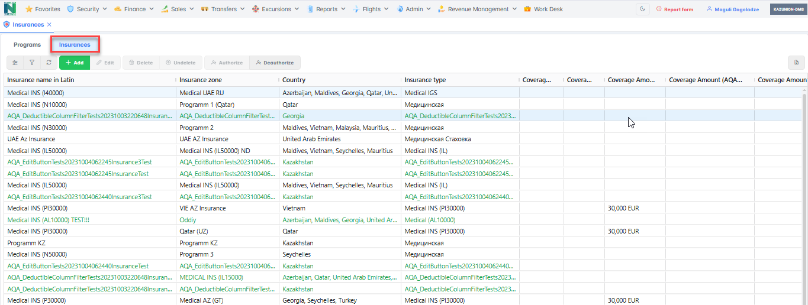
In order to create Insurance in the Insurance Module, a pricing manager presses Add/Edit Insurance button, fills in form with info provided by the suppliers and save it, Insurance record is saved as Draft. To activate the insurance record a manager should authorize the draft.
Insurance will be sold only as a component of whole package.
It is important to mention that a Kazunion manager won't be able to add Insurance without Program attached. As soon as Insurance becomes authorized it becomes available for usage and it will be impossible to Authorize/Activate Programs without prices attached (see Insurance Creation Flow).
When Kazunion agent will start booking process, specific parameters are sent to the nugioscore to be reviewed (Integration with Kazunion -->Parameters from Kazunion to receive Insurance Data). When nugioscore receives specific parameters from Kazunion web, it assess them and calculate the best/most suitable price for the booking.
After the best price calculation, nugioscore sends it back to the Kazunion web and the information is displayed in the same pop-up window as it is today.
After the booking process, the whole information (reservation) is entered in nugioscore reservation forms, where it is handled by the reservation managers and accountant coordinators accordingly.
After the reservation will be evaluated and approved sold Insurance will be activated.
It is important to note that:
- Insurance will not be created without a program attached;
- When a program will be deauthorized ➝ the Insurance (using the particular program) should be deauthorized as well. Consequently, deauthorized insurance should be authorized manually to be active again.
Buttons Description
| Grid Options | A detailed description see here: Grid Options | ||||||||||||||||||||||||||||||||||||||
| Filter Options | A detailed description see here: Filter Options | ||||||||||||||||||||||||||||||||||||||
| Refresh | A detailed description see here: Refresh | ||||||||||||||||||||||||||||||||||||||
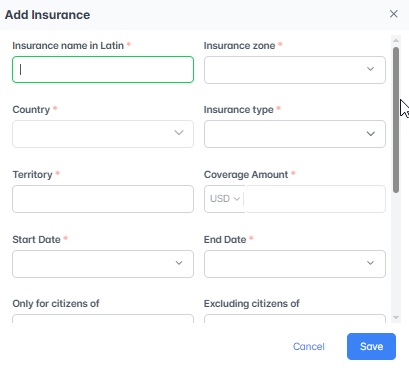
| Add/Edit | Creation/Correction of an Insurance is possible through using Insurance Tab ➝Add/Edit Insurance buttons.
Note: When insurance and Add/Edit Insurance pop-up is open (after pressing Add/Edit Insurance button), after choosing the specific program (in the Insurance Zone field) the following fields must be filled automatically from the program grid: Country, Coverage (medical) according to insurance type.
| ||||||||||||||||||||||||||||||||||||||
| Delete/Undelete | Needs info This feature allows the user to cancel the deletion process and restore deleted records into the system. | ||||||||||||||||||||||||||||||||||||||
| Authorize/Deauthorize | This feature is available to some specific users only who has been granted special permission to authorize/deauthorize the created insurance program and its terms in the Nugioscore system.
After Authorization Programs/Insurance should be active/published. It is important to mention that it is impossible to Authorize/Activate Programs without prices attached. | ||||||||||||||||||||||||||||||||||||||
| Export to Excel | A detailed description see here: Export to Excel |
Grid Columns Description
| Name | Description | Database Name |
| Insurance Name in Latin | ||
| Insurance Zone | ||
| Country | ||
| Insurance Type | ||
| Coverage Amount | ||
| Territory | ||
| Start Date | ||
| End Date | ||
| Only for Citizens of | ||
| Excluding Citizens of | ||
| Tourist Age up to | ||
| Days before the Start of the Tour | ||
| A Commission is Given to a Partner | ||
| Permission to Select a Tourist | ||
| Exclude Infants | ||
| Additional Risks | ||
| Published | True /False | |
| Status |
Technical Description
Architecture Overview
The Client Balance module has the following architecture:
Code Link
Frontend:
Backend:
Project: RustarOnline.WebApi
Databases and Tables
| Database Type | Database Name | Table Name* | Table Description* |
| MSSQL | All NugiosCore Databases | finance._get_client_balance Procedure* | View of invoices and documents balance by contragents |
Data Types of Tables
finance._get_client_balance Procedure*
| Field Name | Display Name | Field Type | Short Description |
| OInvHID | N/A | uniqueidentifier | For invoices: Finance.IncInvoiceHdr [IInvHID] or Finance.OutInvoiceHdr [OInvHID]; ID of invoice (for tech) For documents: Finance.BankDocument [BDID] or Finance.CashDocument [CDID]; ID of document (for tech) |
Log Details
The log files are stored in a designated location: https://elkalyzer.nugios.services/app/discover
Additional
References
| Cross-references | N/A |
| Related modules | Incoming and Outgoing Invoices, Bank and Cash documents, NewRF |
| Media library | N/A |
Contact Us
If you notice any inconsistencies or have comments, please don't hesitate to leave it to us. Your feedback is valuable.